How to download Instagram videos on a computer
On a computer you need neither the Instagram app nor an extension: the website and a browser are enough. This guide covers Chrome, Edge, Firefox and Safari on Windows, macOS and Linux, with the keyboard shortcuts that make it quicker.
Open the downloaderCopy the link on instagram.com
- Open the post on instagram.com. It opens over the feed, and the address bar changes to the post's own link, with /p/ or /reel/ and a code.
- Click the address bar, or press Ctrl+L (Cmd+L on a Mac), and copy the link with Ctrl+C (Cmd+C).
- Or click the three dots on the post and choose Copy link.
Found the post on your phone? Copy the link in the app and send it to yourself, or look the post up on the computer. Links with a username before the code, like instagram.com/name/p/…, and links with extra text after a question mark both work: SaveMeClip picks out what it needs. You don't need to be logged in to Instagram, either.
Paste and download
- Open SaveMeClip in a new tab (Ctrl+T, or Cmd+T).
- Click the box, press Ctrl+V (Cmd+V on a Mac), then press Enter. The Paste button does both in one click; Chrome and Edge ask once for permission to read the clipboard, while Firefox and Safari show a small Paste prompt to confirm.
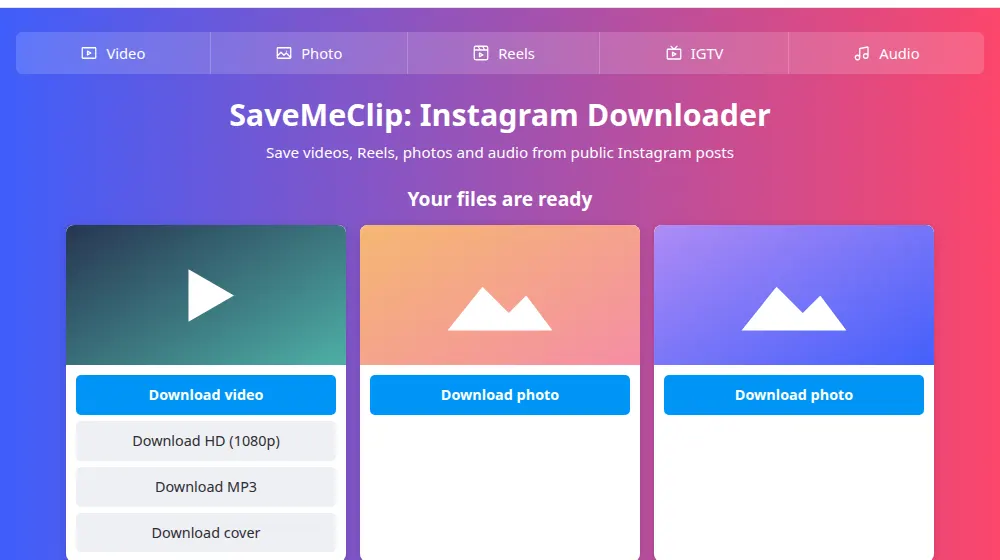
- After a few seconds the result appears, with one card for each item in the post.
- Click the button you want. The file goes straight to your downloads folder instead of opening in a new tab.
Where each browser saves it
Every browser saves to your Downloads folder unless you've told it otherwise: it's in File Explorer on Windows, in the Finder sidebar and the Dock on a Mac, and in your home folder on Linux.
- Chrome: a download icon appears at the top right while the file comes in. Ctrl+J (Cmd+Shift+J on a Mac) opens the full list, where Show in folder (Show in Finder on a Mac) takes you to the file.
- Edge: the Downloads panel opens at the top right, and Ctrl+J brings it back. The folder icon next to a file shows where it is.
- Firefox: the arrow in the toolbar lists recent downloads; the folder icon next to a file opens its folder.
- Safari on a Mac: the downloads button next to the address bar shows the progress, and Option-Cmd-L opens the list. The magnifying glass next to a file shows it in Finder.
To pick the folder and the name each time, turn on the option to ask where to save: in Chrome and Edge it's under Settings › Downloads, in Firefox under Settings › General › Files and Applications, and in Safari under Settings › General › File download location.
Which file for which job
- Editing a video: take Download HD when it's offered. If your editor refuses it (a few can't read VP9, which some HD files use), use Download video or convert the file first.
- Slides and presentations: Download video plays in PowerPoint and Keynote without trouble.
- Transcribing: Download MP3 gives a small file that any transcription tool accepts and uploads quickly.
- Archiving your own posts: save the HD video and its cover together. Their matching names, such as savemeclip-ABC123-1080p.mp4 and savemeclip-ABC123.jpg, keep them side by side in the folder.
- Mood boards and thumbnails: Download photo and Download cover save JPGs at the largest size Instagram offers.
Saving a whole carousel
A carousel shows one card per slide, in the post's order. On a computer the cards sit side by side, so you can go along the row and click each button. The files are numbered by position, savemeclip-ABC123-1.jpg, savemeclip-ABC123-2.mp4 and so on, so they stay in order in your folder. Chrome and Edge may ask once whether the site can download several files: allow it, and the rest go through. There's no single button for the whole set, so you keep only what you choose.
Troubleshooting on a computer
- The page stays on Looking for the files… and then says it couldn't confirm you're a person. A privacy extension or a strict tracking setting is probably blocking the automatic check that keeps bots out. Allow it on SaveMeClip, or use a private window, where most browsers turn extensions off, and reload.
- A download fails at once. If it's been more than two hours since your search, the link has expired: click Download another and paste the link again. If you started several HD or MP3 files together, only two are built at a time for each visitor, so wait for one to finish.
- An HD or MP3 download shows no size or percentage. That's normal: the file is put together while it downloads. Each one has 30 minutes to finish, which is plenty on most connections.
- The video won't open. The players built into Windows and QuickTime on a Mac may not play VP9, which some HD files use. VLC plays it, or use the regular Download video.
- The video has no sound. Check the player's volume and your speakers or headphones. If the post is silent on Instagram too, there's no sound to save; otherwise try Download HD, which joins the separate sound track.
- Private posts and Stories. SaveMeClip only reads what's visible without logging in. Being logged in to Instagram in another tab changes nothing, because your browser's session is never used. Stories need a login to view, so they aren't supported.
- Errors on a link that should work. Instagram sometimes limits requests for a while. Wait a few minutes, then try again, and check that the link has /p/, /reel/ or /tv/ and a code.
Respect the people behind the posts
A computer makes it easy to save and repost in bulk, which is exactly when to be careful. Keep downloads for personal use, for archiving your own work, or for material you have permission to use, and credit the creator by name when you do reuse it. SaveMeClip handles public posts only, and creators can ask us to block a post.