Videos from X, kept on your device
X, the network that used to be Twitter, has no button to save a video, and a post you bookmarked can vanish when its author deletes it. SaveMeClip takes the link of a public post and gives you its video as an MP4 file that's yours to keep.
Links from x.com and twitter.com both work, from the app or the browser, and you don't need an X account.
How to download a video from X
- Open the post on X. In the app, tap the Share icon and then Copy link. On a computer, click the post's date to open it on its own page and copy the address.
- Paste the link in the box at the top of this page and press Download.
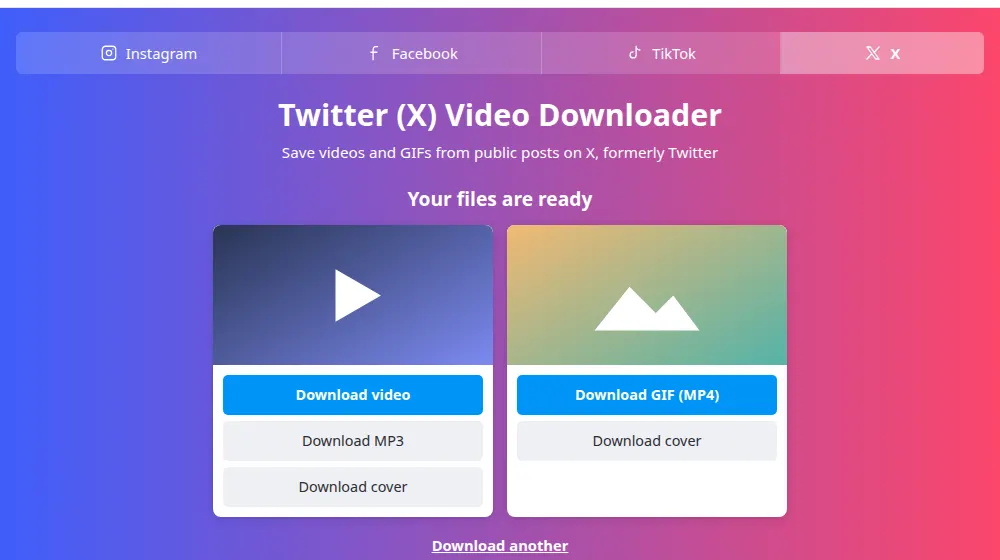
- Press Download video, Download GIF (MP4) for a GIF, or Download MP3 for the sound.
- Look in your downloads folder for a file whose name starts with savemeclip-x.
GIFs come as MP4
X turns every GIF into a short silent video when it's posted, and that video is what it keeps. So the Download GIF (MP4) button gives you an MP4: it's smaller and sharper than a real GIF, and most players and chat apps loop it. There's no MP3 button for GIFs, since they have no sound.
What you get
A post with several videos shows a card for each one, so you can save only the ones you want.
- Download video: the highest quality X offers as a single file, with picture and sound, in an MP4 that plays everywhere.
- Download MP3: the sound of the video, converted to MP3 at 192 kbps.
- Download cover: the image shown before the video plays.
Posts we can't open
Short t.co links aren't accepted, because they can lead anywhere. Open them, then copy the address of the post itself.
- Posts from protected accounts, which only their approved followers see.
- Posts X marks as sensitive, which it only shows to logged-in users.
- Posts from suspended accounts, and deleted posts.
- Spaces, live broadcasts and videos from other sites that only appear as a preview card in a post.
- Posts with only photos: this page saves videos and GIFs.
Be fair with what you save
Many videos on X are news footage, clips of TV shows or someone's personal moments. Saving one to watch later or to keep as a reference is one thing; posting it again as your own is another, and it can break copyright law and X's rules. Credit the source when you share. If your own content is being misused, see our copyright page.
Frequently asked questions
Does it work with both twitter.com and x.com links?
Yes. Both addresses lead to the same posts, so you can paste a link from x.com, twitter.com, mobile.twitter.com or the X app. A link that ends with /video/1 or /photo/1 works too.
How do I download a GIF from Twitter?
Copy the link of the post with the GIF and paste it here. You'll get a Download GIF (MP4) button: X stores GIFs as silent MP4 videos, so that's the original file. If you need a real .gif, convert the MP4 with an image editor.
Can I download videos from a protected account?
No. Protected posts are only for the followers the author approved, and SaveMeClip reads X the way a visitor who isn't logged in does. We have no way around that, and won't add one.
Why does it say the account is suspended?
X suspended the account that published the post, and it no longer shows that account's posts to anyone. If the account comes back, the link may work again.
Can I save the photos of a post?
Not here. This page saves videos and GIFs. For a photo, open it on X and use your browser's or phone's own option to save the image.
What quality are the videos?
The best version X keeps as a single file, often 720p or 1080p, depending on what was uploaded. We don't re-encode it, so its quality is exactly the one X serves.
Where does the video go on an iPhone?
Safari saves it in the Downloads folder of the Files app. Open it there, tap the share button and choose Save Video to put it in Photos.