How to download Instagram videos on iPhone and iPad
On an iPhone or iPad you don't need an app: Safari downloads the file, the Files app keeps it, and a couple of taps move it to Photos. This guide covers each step in Safari and in Chrome, where to find what you saved and the problems that only show up on iOS.
Open the downloaderBefore you start
Downloads arrived in Safari with iOS and iPadOS 13, so any iPhone or iPad from the last several years can do this. All you need is the link of a public post. SaveMeClip runs in the browser you already have: there's nothing to install, and no Instagram login to give.
Copy the link in the Instagram app
- Open the post or Reel you want to keep.
- Tap the paper-plane share icon. On a feed post it sits under the photo; on a Reel it's in the column on the right.
- In the panel that slides up, tap Copy link. Instagram confirms it with a short message.
The three dots at the top of a post open a menu with the same option. If you're looking at the post on instagram.com in Safari instead of the app, use the three dots there, or copy the address from the address bar.
Download with Safari
- Open Safari and go to SaveMeClip.
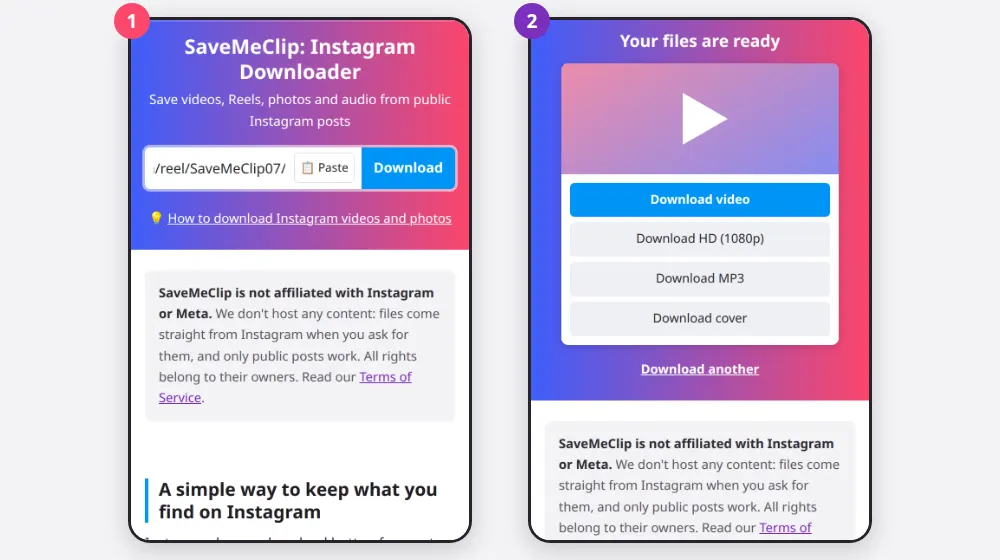
- Tap Paste next to the box. iOS may show a small Paste bubble to confirm: tap it and the search starts on its own. If you'd rather do it by hand, touch and hold the box, choose Paste from the menu, then tap Download.
- When the list headed Your files are ready appears, tap the button you want, such as Download video.
- Safari asks whether you want to download the file and shows its name, which starts with savemeclip-. Tap Download.
- A download icon appears next to the address bar. Tap it to follow the progress and, when it's done, to open the file.
Download with Chrome on iPhone
Chrome works too, but it keeps files in a different place. After you tap a button, Chrome shows a bar at the bottom of the screen with the file's name; tap Download if it asks. When the download ends, Open in… sends the file to another app. Later you'll find it in the Files app under On My iPhone, in the Chrome folder, or in Downloads in Chrome's own menu.
Other browsers, such as Firefox and Edge, also save to the Files app, usually in a folder with the browser's name under On My iPhone. Safari takes the fewest steps, which is why this guide starts with it.
Where Safari saves the file
Safari puts downloads in the Files app, in a folder called Downloads. By default that folder is in iCloud Drive, so it also appears on your other Apple devices and uses your iCloud storage. To keep downloads on the device instead, open Settings, then Safari (on recent versions, Apps › Safari), tap Downloads and choose On My iPhone.
To find a file fast, open Files, tap Browse and search for savemeclip: every file from this site starts with that word, followed by the post's code.
Move a video or photo to Photos
The Files app holds the download, but the Photos app doesn't see it until you save it there:
- Open the file, in Files or from Safari's list of downloads.
- Tap the share icon, the square with an arrow pointing up.
- Choose Save Video for an MP4, or Save Image for a photo or a cover.
- Open Photos and look in Recents.
Once it's in Photos you can delete the copy in Files to free up space. An MP3 can't go to Photos, nor straight into the Music app: it plays in the Files app, and the share icon sends it to apps such as GarageBand or VLC.
Which button to tap on iPhone
- Download video is the safe choice for Photos: it's the version Instagram itself plays on phones, and the iPhone handles it without trouble.
- Download HD, when it appears, is sharper. Some HD files are in VP9, a format Photos may refuse; if Save Video fails or doesn't show up, use the regular video.
- Download MP3 is for listening, such as a talk or a lesson you want to hear with the screen off.
- Download cover and Download photo give a JPG that goes to Photos with Save Image.
In a carousel each slide has its own card, so scroll down the list and tap the buttons of the slides you want, one at a time.
Problems you might see on iOS
- The file opens in a preview instead of downloading. When Safari asks, tap Download rather than View. You can also touch and hold the button on our page and choose Download Linked File.
- The Paste button is missing or does nothing. Touch and hold the box, choose Paste from the menu, then tap Download.
- The download stops halfway. iOS can pause Safari's download when you lock the screen or switch apps, and our server drops a download that receives nothing for about a minute. Keep Safari in front until it finishes, ideally on Wi-Fi, and start again if it fails.
- It fails when you come back to the page later. Download links last two hours. Tap Download another, paste the link again and use the new buttons.
- A story or a private account doesn't work. SaveMeClip only reads what anyone can see without logging in. Instagram shows Stories only to people who are logged in, and private accounts only to their followers, so neither is within reach.
- The video has no sound. Turn the volume up and check that the preview isn't muted. If the post is silent on Instagram too, its music may have been removed there. If it plays with sound on Instagram, try Download HD, which takes the sound track separately.
- Nothing shows up in Photos. Downloads go to Files first: follow the steps above to save them to Photos.
Keep it fair
Saving a clip to watch on a flight, or keeping your own Reels, is personal use. Reposting someone else's video from your camera roll is a different matter: ask the creator first, credit them, and remember that music in Reels is licensed for Instagram, not for wherever you post next. SaveMeClip only works with public posts, and that won't change.